Lists are everywhere on the web. Navigation menus, recipe steps, feature lists, FAQs and footers are usually lists under the hood.
When I started with HTML, I only knew ul and li. Later, I discovered ordered lists with custom numbering and the description list, which I now use more often than I expected.
In this article, I will explain the three types of HTML lists, how to nest them, and how to style them with CSS.
The Three Types of Lists
HTML has three list types:
- Unordered list (
ul): items where the order does not matter. - Ordered list (
ol): items where the order matters. - Description list (
dl): pairs of terms and descriptions.
Let me go through each one.
Unordered Lists: ul
Use an unordered list when the order of items does not change the meaning:
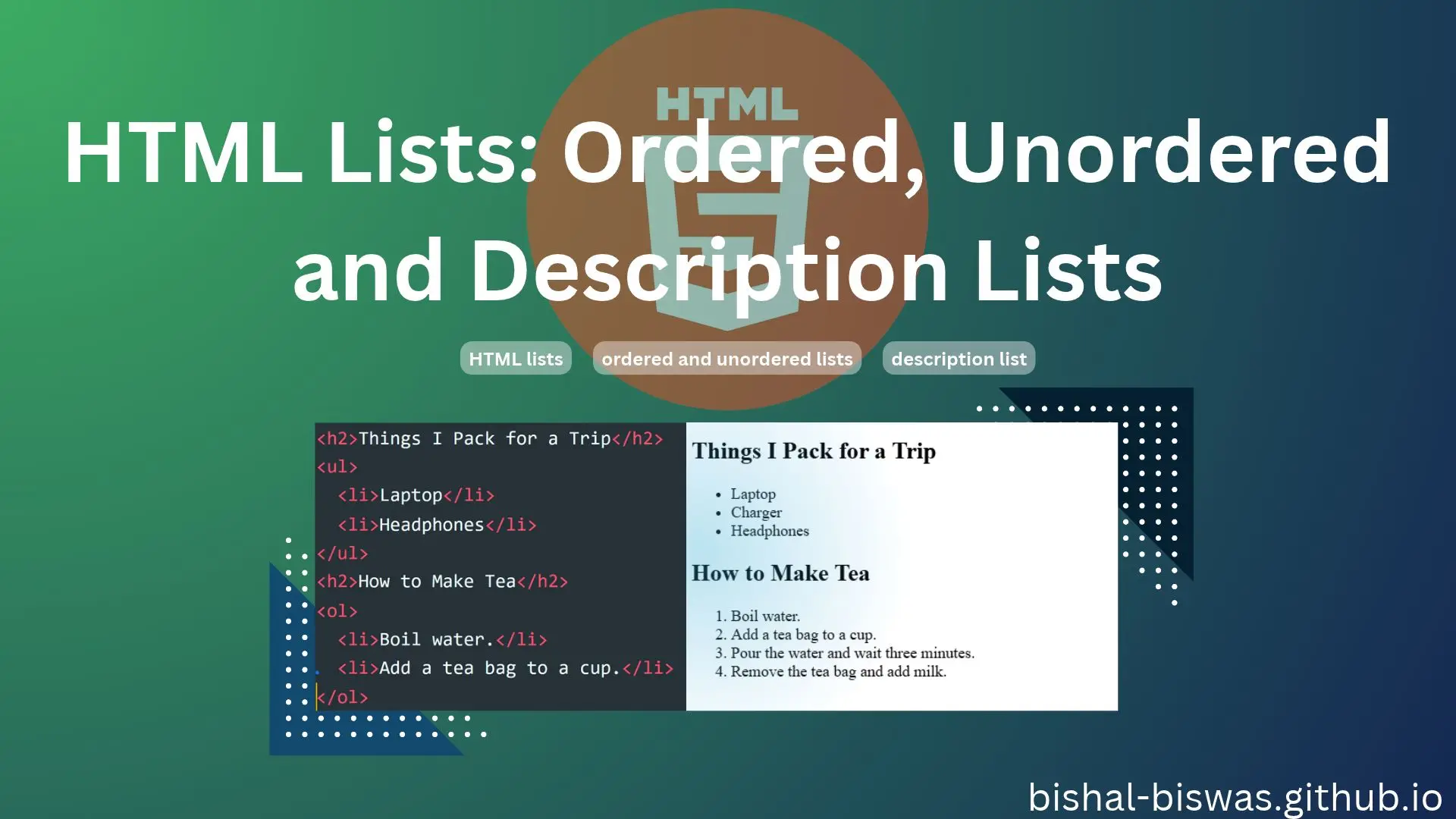
<h2>Things I Pack for a Trip</h2>
<ul>
  <li>Laptop</li>
  <li>Charger</li>
  <li>Headphones</li>
</ul>
By default, browsers show each item with a bullet point.
Each item must be inside an li (list item) element. The ul element should only contain li elements as direct children.
Ordered Lists: ol
Use an ordered list when the sequence matters, such as steps or rankings:
<h2>How to Make Tea</h2>
<ol>
  <li>Boil water.</li>
  <li>Add a tea bag to a cup.</li>
  <li>Pour the water and wait three minutes.</li>
  <li>Remove the tea bag and add milk.</li>
</ol>
The browser numbers the items automatically. If you add or remove a step, the numbers update by themselves. That is a big advantage over typing “1.”, “2.”, “3.” manually.
Useful ol Attributes
Ordered lists have a few attributes that are handy:
<!-- Start counting from 5 -->
<ol start="5">
  <li>Fifth item</li>
  <li>Sixth item</li>
</ol>

<!-- Count down -->
<ol reversed>
  <li>Bronze</li>
  <li>Silver</li>
  <li>Gold</li>
</ol>

<!-- Use letters or Roman numerals -->
<ol type="A">
  <li>Option A</li>
  <li>Option B</li>
</ol>

<ol type="i">
  <li>Part one</li>
  <li>Part two</li>
</ol>startsets the first number.reversedcounts downwards.typechanges the marker:1,a,A,iorI.
You can also set the number of a single item with the value attribute on li:
<ol>
  <li>First</li>
  <li value="10">Jumps to ten</li>
  <li>Eleven</li>
</ol>
Description Lists: dl, dt and dd
The description list is the one most beginners skip, but it is very useful. It groups terms with their descriptions:
<dl>
  <dt>HTML</dt>
  <dd>The language that structures web content.</dd>

  <dt>CSS</dt>
  <dd>The language that styles web content.</dd>

  <dt>JavaScript</dt>
  <dd>The language that adds interactivity.</dd>
</dl>dlis the list container.dtis the term.ddis the description.
A term can have more than one description, and several terms can share one description:
<dl>
  <dt>Author</dt>
  <dd>Bishal Biswas</dd>

  <dt>Tags</dt>
  <dd>HTML</dd>
  <dd>Beginner</dd>
</dl>
I use description lists for glossaries, FAQs, product specifications and metadata like “Published on” and “Reading time”.
HTML also allows wrapping each group in a div, which makes styling easier:
<dl>
  <div>
    <dt>Price</dt>
    <dd>$29</dd>
  </div>
  <div>
    <dt>Weight</dt>
    <dd>1.2 kg</dd>
  </div>
</dl>
Nesting Lists
Lists can contain other lists. The important rule is that the nested list goes inside an li, not directly inside the ul or ol.
Correct:
<ul>
  <li>Frontend
    <ul>
      <li>HTML</li>
      <li>CSS</li>
      <li>JavaScript</li>
    </ul>
  </li>
  <li>Backend</li>
</ul>
Incorrect:
<ul>
  <li>Frontend</li>
  <ul>
    <li>HTML</li>
  </ul>
</ul>
In the wrong version, the inner ul is a direct child of the outer ul, which is invalid.
You can mix list types too. For example, an ordered list of steps where one step has a bulleted list of options.
Lists for Navigation
Navigation menus are often marked up as a list of links inside a nav element:
<nav aria-label="Main">
  <ul>
    <li><a href="/">Home</a></li>
    <li><a href="/articles">Articles</a></li>
    <li><a href="/contact">Contact</a></li>
  </ul>
</nav>
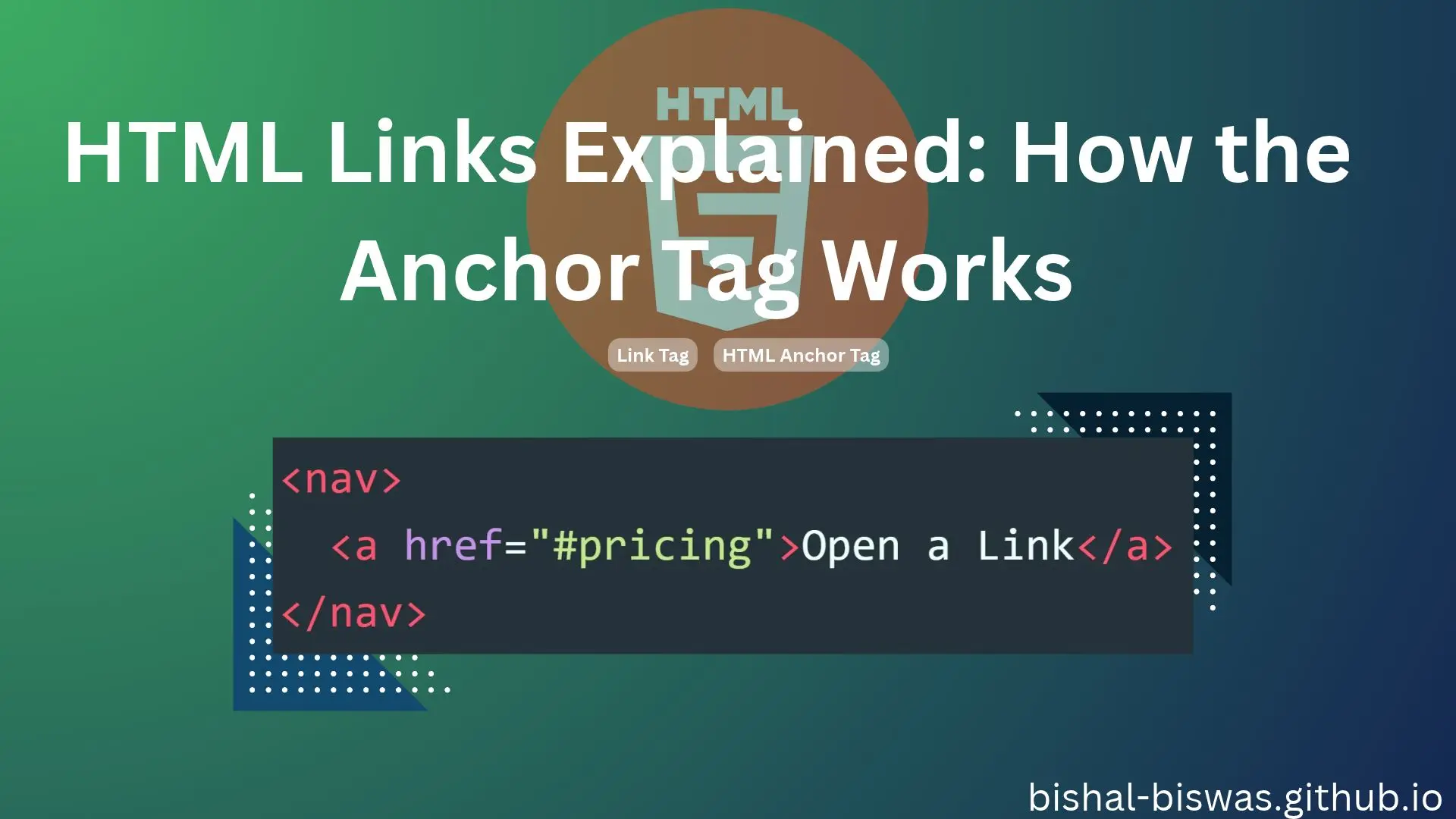
Screen readers announce “list, 3 items”, which tells the user how many links to expect. If you want to learn more about links, read how the anchor tag works.
Styling Lists With CSS
Removing Bullets and Spacing
For menus, I usually remove the default bullets and indentation:
nav ul {
  list-style: none;
  margin: 0;
  padding: 0;
  display: flex;
  gap: 1rem;
}
The display: flex part places the items in a row. I explain Flexbox in detail in my CSS Flexbox and Grid guide.
One small thing to know: in Safari, removing list-style can make VoiceOver stop announcing it as a list. Since the nav and link text still give context, this is usually fine for menus. If the “list” announcement matters, you can add role="list" to the ul.
Changing the Marker Type
ul.squares {
  list-style-type: square;
}

ol.letters {
  list-style-type: lower-alpha;
}
Styling the Marker Itself
The ::marker pseudo-element lets you style bullets and numbers directly:
li::marker {
  color: #5fb353;
  font-weight: bold;
}
You can even use a custom string:
ul.checklist li::marker {
  content: "✓ ";
}
If selectors like ul.checklist li::marker look unfamiliar, my article on CSS selectors explained covers them.
Which List Should I Use?
Here is a quick decision guide:
| Question | Use |
|---|---|
| Does the order of items change the meaning? | ol |
| Is it just a group of related items? | ul |
| Are there pairs of names and values or terms and definitions? | dl |
A helpful test for ol: if you shuffled the items, would it still make sense? If not, use an ordered list.
Common Mistakes
1. Putting Elements Other Than li Directly Inside ul or ol
<ul>
  <p>Item</p>
</ul>
Only li (and script-supporting elements like template) should be direct children. Put the p inside an li if you need it.
2. Typing Numbers by Hand
<ul>
  <li>1. Boil water</li>
  <li>2. Add tea</li>
</ul>
Use ol instead. It numbers items automatically and tells assistive technology that the order matters.
3. Nesting a List Outside an li
As shown earlier, the nested list must live inside a list item.
4. Using Lists Only for Indentation
Do not wrap content in ul just to indent it. Use CSS padding or margin for layout.
5. Forgetting the Description List Exists
People often build key-value pairs with div and span. A dl is usually the more meaningful choice.
Conclusion
HTML gives you three list types, and each has a clear job. Use ul when order does not matter, ol when it does, and dl for terms paired with descriptions. Nest lists inside li elements, let the browser handle numbering, and use CSS for spacing and marker styles.
Once you start noticing lists, you will see them everywhere on the web, from menus to footers to recipe cards.