Every HTML page I have ever built starts with the same few lines. When I first saw them, I copied them without really knowing what they did. Later, I realised that these lines are the skeleton of the whole page.
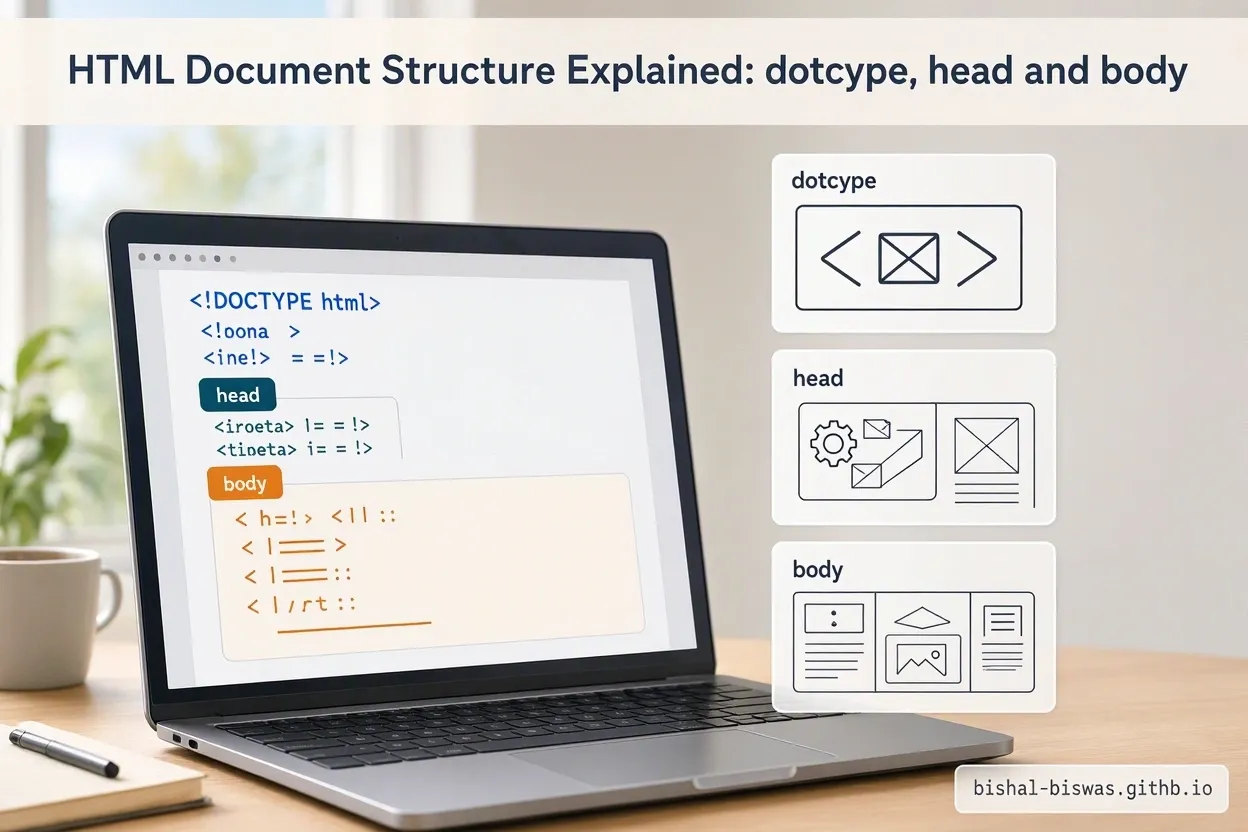
In this article, I will explain the basic structure of an HTML document. We will look at the doctype, the html element, the head element and the body element, and I will show you a starter template you can reuse.
If you are completely new to HTML, you may want to read my beginner’s guide to HTML first.
The Basic HTML Template
Here is a minimal, modern HTML document:
<!DOCTYPE html>
<html lang="en">
  <head>
    <meta charset="utf-8">
    <meta name="viewport" content="width=device-width, initial-scale=1">
    <title>My First Page</title>
  </head>
  <body>
    <h1>Hello, world!</h1>
    <p>This is my first web page.</p>
  </body>
</html>
It looks short, but every line has a job. Let me go through them one by one.
What Is the Doctype?
The first line is the doctype declaration:
<!DOCTYPE html>It is not an HTML element. It is an instruction to the browser that says, “Render this page using modern standards.”
Without it, browsers fall back to something called quirks mode. Quirks mode copies the strange behaviour of very old browsers so that ancient websites still work. In quirks mode, layout and sizing can behave differently from what you expect.
A few things to know:
- It must be the very first thing in the file.
- It is not case-sensitive, so
<!doctype html>works too. - Older versions of HTML had long, complicated doctypes. Today, the short version is all you need.
The html Element
After the doctype comes the html element. It wraps everything else on the page, so it is called the root element.
<html lang="en">
  ...
</html>
The lang attribute tells browsers, search engines and screen readers what language the page is written in. A screen reader can use it to pick the right pronunciation, and a browser can use it to offer translation.
For a page in Bengali, I would write lang="bn". For British English, lang="en-GB".
Inside html, there are only two direct children: head and body.
The head Element
The head holds information about the page. Most of it is not shown on the page itself.
<head>
  <meta charset="utf-8">
  <meta name="viewport" content="width=device-width, initial-scale=1">
  <title>My First Page</title>
  <link rel="stylesheet" href="styles.css">
</head>
Let me explain the common items.
meta charset
<meta charset="utf-8">This tells the browser which character encoding the file uses. UTF-8 supports almost every character in every language, plus emoji and symbols. It should appear early in the head, ideally as the first item, so the browser reads the rest of the file correctly.
meta viewport
<meta name="viewport" content="width=device-width, initial-scale=1">This line is important for mobile phones. Without it, many mobile browsers pretend the screen is about 980 pixels wide and then shrink the page down. Text becomes tiny. With it, the page uses the real width of the device.
title
<title>My First Page</title>The title appears in the browser tab, in bookmarks and usually as the clickable headline in search results. Every page should have one, and it should describe that specific page.
Links to CSS and Other Resources
<link rel="stylesheet" href="styles.css">
<link rel="icon" href="/favicon.svg" type="image/svg+xml">
The link element connects the page to external resources such as stylesheets and the favicon.
The head can also contain script elements, style elements and many more meta tags. I cover those in HTML meta tags every beginner should know.
The body Element
The body contains everything the visitor actually sees and interacts with: headings, paragraphs, images, links, forms, buttons and so on.
<body>
  <header>
    <h1>My Blog</h1>
  </header>

  <main>
    <article>
      <h2>My First Post</h2>
      <p>Welcome to my blog.</p>
    </article>
  </main>

  <footer>
    <p>Written by Bishal</p>
  </footer>
</body>
There is only one body per page. Inside it, I like to use semantic elements such as header, main and footer to describe the layout. You can read more about them in HTML semantic elements explained.
Where Should Scripts Go?
Beginners often ask whether script tags belong in the head or at the end of the body.
In the past, the advice was to put scripts at the end of the body. This was because a normal script blocks the browser from reading the rest of the HTML until the script downloads and runs.
Today, I usually put scripts in the head with the defer attribute:
<head>
  <script src="app.js" defer></script>
</head>
With defer, the browser downloads the script in the background and runs it only after the HTML has been fully parsed. So the page is not blocked, and the script can safely find elements in the body.
How the Browser Reads the Structure
A helpful way to picture the document is as a tree:
html
├── head
│   ├── meta (charset)
│   ├── meta (viewport)
│   └── title
└── body
    ├── h1
    └── p
The browser turns your HTML into this tree, called the DOM (Document Object Model). CSS and JavaScript work with this tree. That is why a clean structure makes styling and scripting much easier later.
Common Mistakes
1. Forgetting the Doctype
If the doctype is missing, the page may render in quirks mode. Some CSS, especially sizing and box behaviour, can then look slightly wrong, and it is hard to work out why. Always keep <!DOCTYPE html> as line one.
2. Putting Visible Content in the head
This is wrong:
<head>
  <title>My Page</title>
  <h1>Welcome</h1>
</head>
Headings, paragraphs and images belong in the body. Browsers will try to fix this for you, but you should not rely on that.
3. Missing the Viewport Tag
If your page looks tiny on a phone even though you wrote responsive CSS, check for the viewport meta tag first. It is the most common cause I see.
4. Leaving Out the lang Attribute
The page will still display, but screen readers and translation tools lose useful information. It takes two seconds to add, so I always include it.
5. Using More Than One body
Each document has exactly one head and one body. If you want separate sections, use elements like section, article or div inside the single body.
Are html, head and body Optional?
Technically, the HTML specification allows you to leave out the html, head and body tags in some cases. The browser will create those elements for you automatically.
However, I never recommend this for beginners. Writing them out makes the structure clear, avoids surprises and makes your code easier for others to read.
Conclusion
Every HTML document follows the same basic structure:
<!DOCTYPE html>tells the browser to use standards mode.<html lang="...">is the root element and sets the page language.<head>holds information about the page, such as the character set, viewport, title and links to CSS.<body>holds everything the visitor sees.
Once this skeleton feels familiar, every new page becomes easier to start. My advice is to save the template from this article and use it as the starting point for your next project. Then start filling the body with content.