Most of the web is text. Blog posts, product pages, documentation and news articles are mostly headings and paragraphs with a few highlighted words here and there.
When I started learning HTML, I picked heading levels based on how big they looked, and I used <b> and <i> for everything. It worked visually, but it was not correct HTML.
In this article, I will explain how to use headings, paragraphs and the most useful text formatting tags properly.
If you have not seen how an HTML page is put together yet, read HTML document structure explained first.
HTML Headings: h1 to h6
HTML has six heading levels:
<h1>Main title of the page</h1>
<h2>A major section</h2>
<h3>A subsection</h3>
<h4>A smaller subsection</h4>
<h5>Rarely needed</h5>
<h6>Very rarely needed</h6>
h1 is the most important, and h6 is the least important.
Headings Create an Outline
The important thing to understand is that headings are not about size. They describe the structure of your content, like the table of contents of a book.
<h1>Learning Web Development</h1>

<h2>HTML</h2>
<h3>Headings</h3>
<h3>Paragraphs</h3>

<h2>CSS</h2>
<h3>Selectors</h3>
Screen reader users often jump from heading to heading to scan a page. Search engines also use headings to understand what the page is about. A clear outline helps both.
How Many h1 Elements Should a Page Have?
My rule is simple: one h1 per page, describing the main topic. Then I use h2 for main sections and h3 for subsections inside them.
Some people remember that HTML once planned an “outline algorithm” where every section could have its own h1. Browsers never implemented it, so the safe approach in 2026 is still one h1 and a logical order of levels.
Do Not Skip Levels
Try not to jump from h2 straight to h4. It confuses the outline. If the default size of a heading does not suit your design, change it with CSS instead:
h3 {
  font-size: 1.1rem;
}
HTML Paragraphs
A paragraph is written with the p element:
<p>HTML is the language used to structure web pages.</p>
<p>CSS is used to style them.</p>
The browser adds some space above and below each paragraph by default.
Whitespace Is Collapsed
One thing that surprised me early on is that HTML ignores extra spaces and line breaks in your code:
<p>
  This     text
  has lots      of spaces.
</p>
The browser shows: “This text has lots of spaces.” Multiple spaces and new lines collapse into a single space.
Line Breaks With br
If you really need a line break inside a paragraph, such as in an address or a poem, use br:
<p>
  Bishal Biswas<br>
  Kolkata<br>
  India
</p>
Do not use several br tags to create space between blocks. Use separate paragraphs or CSS margins instead.
Thematic Breaks With hr
The hr element represents a change of topic between paragraphs. Browsers draw it as a horizontal line:
<p>That was the end of chapter one.</p>
<hr>
<p>Chapter two begins here.</p>
Text Formatting Tags
HTML has several inline elements for marking up words inside a paragraph. Some carry meaning, and some are mostly visual. Knowing the difference is the key part of this topic.
strong vs b
<p><strong>Warning:</strong> Do not delete this file.</p>
<p>The product name is <b>PixelPad</b>.</p>strongmeans the text is important, serious or urgent.bdraws attention to text without adding extra importance, such as keywords or product names.
Both look bold by default.
em vs i
<p>I <em>really</em> need to finish this today.</p>
<p>The word <i lang="fr">déjà vu</i> comes from French.</p>emadds stress emphasis. It changes how the sentence would be spoken.iis for text in an alternative voice, such as foreign words, technical terms, or a character’s thoughts.
Both look italic by default.
mark
mark highlights text that is relevant in the current context, for example search results:
<p>Results for "flexbox": learn <mark>flexbox</mark> in ten minutes.</p>small
small is for side comments and fine print, like legal notes:
<p><small>Prices include tax.</small></p>code, kbd and pre
These are useful when you write about programming:
<p>Use the <code>console.log()</code> function to print values.</p>
<p>Press <kbd>Ctrl</kbd> + <kbd>S</kbd> to save.</p>

<pre><code>function greet() {
  return "Hello";
}</code></pre>codemarks a piece of computer code.kbdmarks keyboard input.prekeeps whitespace and line breaks exactly as written.
sub and sup
<p>Water is H<sub>2</sub>O.</p>
<p>E = mc<sup>2</sup></p>
sub is subscript and sup is superscript.
del and ins
These show edits to a document:
<p>Price: <del>$50</del> <ins>$35</ins></p>blockquote and q
For quotations, use blockquote for long quotes and q for short inline quotes:
<blockquote cite="https://example.com/source">
  <p>Simple things should be simple.</p>
</blockquote>

<p>She said <q>see you tomorrow</q> and left.</p>
The browser adds quotation marks around q automatically.
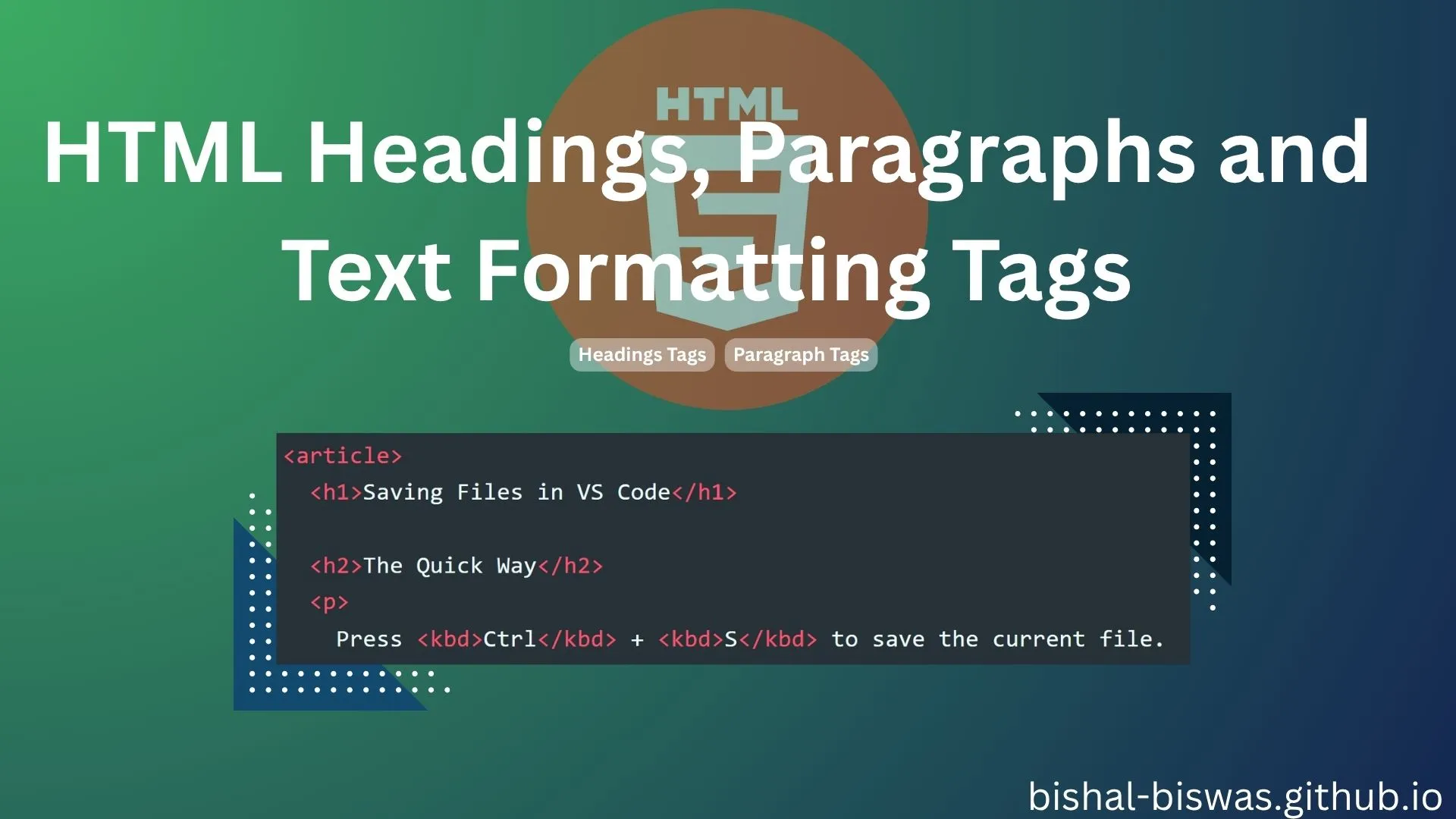
A Practical Example
Here is how I might mark up a short tutorial section:
<article>
  <h1>Saving Files in VS Code</h1>

  <h2>The Quick Way</h2>
  <p>
    Press <kbd>Ctrl</kbd> + <kbd>S</kbd> to save the current file.
    This is the shortcut I use <em>most</em> often.
  </p>

  <h2>Auto Save</h2>
  <p>
    <strong>Tip:</strong> turn on Auto Save from the
    <b>File</b> menu so you never lose work.
  </p>
</article>
The headings form a clean outline, and each formatting tag has a reason to be there. This kind of meaningful markup is part of writing semantic HTML.
Common Mistakes
1. Choosing Headings by Size
Picking h4 because it “looks right” breaks the outline. Pick the correct level, then style it with CSS.
2. Using Headings for Bold Text
If a line is not the title of a section, it should not be a heading. Use strong or a styled p instead.
3. Using br for Spacing
<p>First block</p>
<br><br><br>
<p>Second block</p>
This is fragile. Control spacing with CSS margin. You can target paragraphs precisely using CSS selectors.
4. Treating strong and b as the Same
They look the same, but they mean different things. Screen readers and other tools can use that meaning.
5. Wrapping Everything in span
A span has no meaning. If a word is important or stressed, use strong or em. Save span for pure styling hooks, as I explain in HTML div vs span.
Conclusion
Headings and paragraphs are the backbone of most web pages. Use h1 to h6 to build a logical outline, not to control font size. Use p for paragraphs and let CSS handle spacing.
For inline formatting, pick the tag that matches the meaning: strong for importance, em for emphasis, mark for highlights, code for code, and so on. When you need only a visual change with no special meaning, CSS is the right tool.
Once you get used to thinking about meaning first, your HTML becomes cleaner, more accessible and easier to style.