Links are what make the web a “web”. Without them, every page would be an island. When I first learned HTML, the anchor tag looked simple, but there were a few details that took me a while to get right, like relative paths and opening links in new tabs.
In this article, I will explain how the anchor tag works, the different kinds of URLs you can use, and the attributes I use most often.
The Basic Anchor Tag
A link is created with the a element (short for “anchor”):
<a href="https://developer.mozilla.org">Visit MDN</a>There are two parts:
- The
hrefattribute holds the destination. - The text between the tags is what the user clicks.
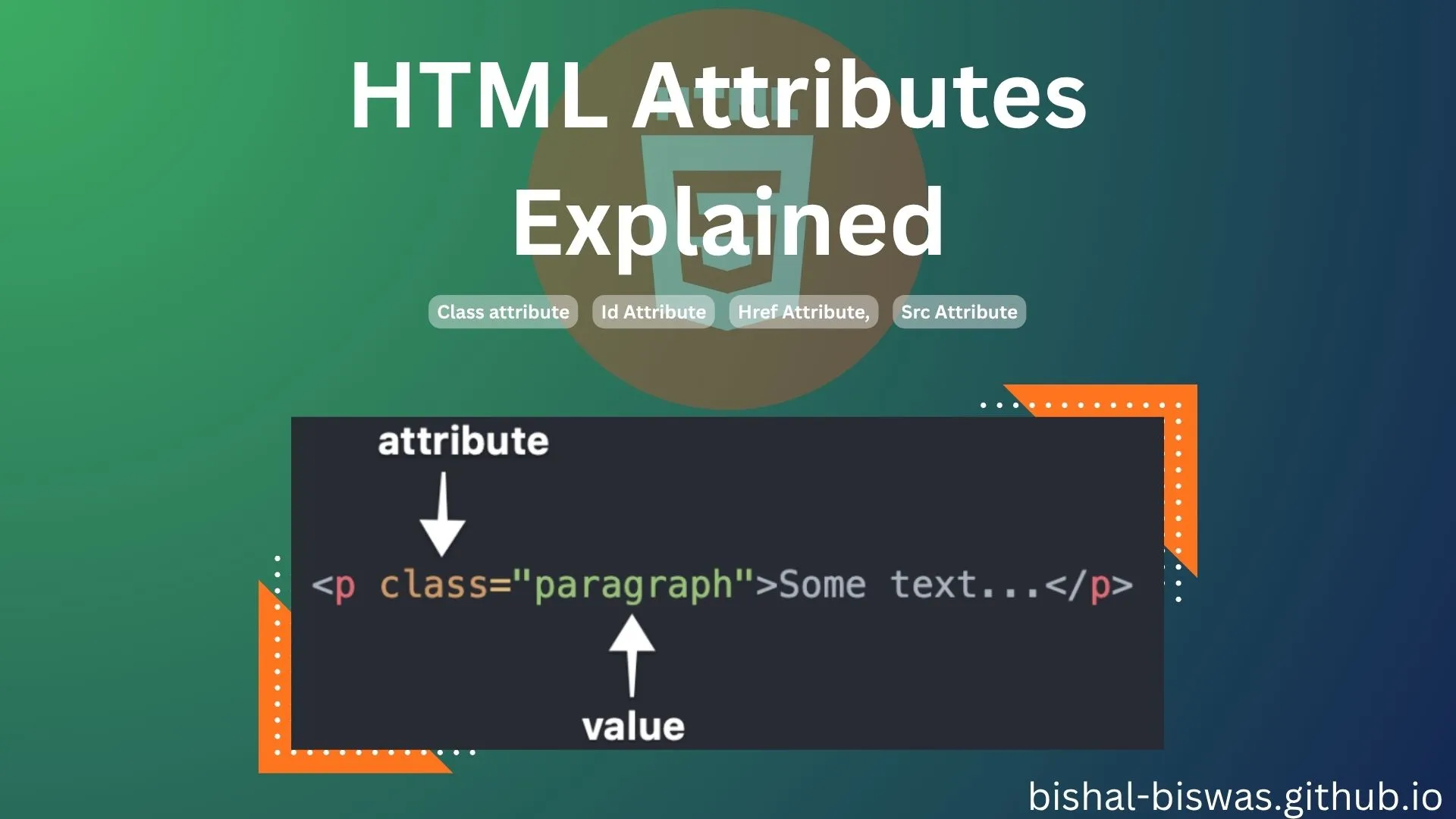
If you want a refresher on how attributes work in general, see HTML attributes like class, id, href and src.
An a element without an href is not a real link. It is not focusable with the keyboard and does nothing when clicked. So always include href when you want a link.
Absolute vs Relative URLs
This is the part that confused me most at the beginning.
Absolute URLs
An absolute URL includes the full address, starting with the protocol:
<a href="https://example.com/blog/post-1">Read the post</a>I use absolute URLs when linking to another website.
Relative URLs
A relative URL is resolved based on the current page’s location. It is used for links within your own site.
Imagine this folder structure:
my-site/
├── index.html
├── about.html
└── blog/
    ├── index.html
    └── first-post.html
From index.html:
<a href="about.html">About</a>
<a href="blog/first-post.html">First post</a>
From blog/first-post.html:
<a href="../about.html">About</a>
<a href="index.html">Blog home</a>
The ../ means “go up one folder”.
Root-Relative URLs
A URL that starts with / is relative to the root of the site:
<a href="/about.html">About</a>This works the same from any page on the same site, which is why I often prefer it. One catch: if your site lives in a subfolder (for example, username.github.io/project/), the root is the domain, not your project folder.
Linking to a Section on the Same Page
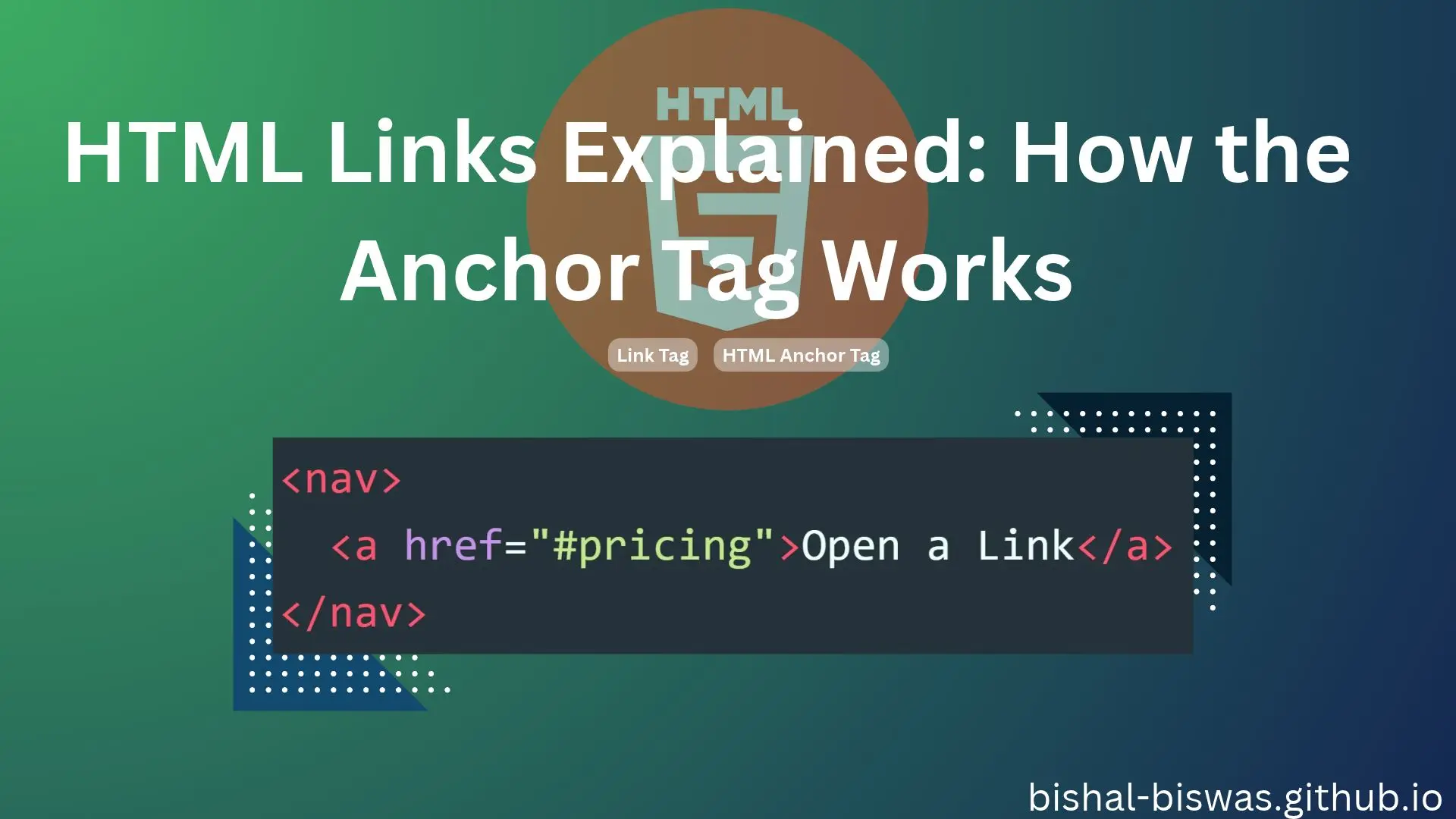
You can jump to a specific part of a page using an id and a #:
<nav>
  <a href="#pricing">Jump to pricing</a>
</nav>

<section id="pricing">
  <h2>Pricing</h2>
  <p>Plans start at $5 per month.</p>
</section>
You can also combine a page and a section:
<a href="/docs.html#installation">Installation guide</a>To make the jump smooth instead of instant, add a little CSS:
html {
  scroll-behavior: smooth;
}
Opening Links in a New Tab
The target attribute controls where the link opens:
<a href="https://example.com" target="_blank">Open in a new tab</a>_blank opens a new tab or window. The default, _self, opens in the same tab.
What About rel="noopener"?
In the past, a page opened with target="_blank" could access the original page through window.opener and redirect it. The fix was to add rel="noopener".
Modern browsers now apply noopener behaviour to target="_blank" links by default. Adding it is still harmless, and I sometimes include it for clarity:
<a href="https://example.com" target="_blank" rel="noopener noreferrer">
  External site
</a>
noreferrer also stops the browser from sending the current page address to the other site.
Should You Use target="_blank" at All?
I use it sparingly. Users can already open links in new tabs if they want to. Forcing new tabs can be annoying, especially on mobile. I mostly reserve it for things like help links inside a form, where leaving the page would lose the user’s progress.
Other Useful rel Values
The rel attribute describes the relationship between your page and the linked page:
<a href="https://sponsor.example" rel="sponsored">Our sponsor</a>
<a href="https://user-site.example" rel="ugc nofollow">User website</a>sponsoredmarks paid or affiliate links.ugcmarks user-generated links, like links in comments.nofollowtells search engines not to pass ranking credit.
Email and Phone Links
Links are not limited to web pages:
<a href="mailto:hello@example.com">Email me</a>
<a href="tel:+911234567890">Call us</a>
mailto: opens the user’s email app, and tel: starts a call on phones. You can pre-fill an email subject too:
<a href="mailto:hello@example.com?subject=Website%20enquiry">Email me</a>Note that spaces in URLs should be encoded as %20.
Download Links
The download attribute suggests that the browser should download the file instead of opening it:
<a href="/files/resume.pdf" download>Download my resume</a>
<a href="/files/resume.pdf" download="Bishal-Biswas-Resume.pdf">Download</a>
The second version also suggests a file name. This works for files on the same origin. For files from other domains, browsers usually ignore the download attribute.
Writing Good Link Text
Link text matters for accessibility and SEO. Screen reader users often pull up a list of all links on a page. If every link says “click here”, that list is useless.
Bad:
<p>To learn about forms, <a href="/forms">click here</a>.</p>Better:
<p>Read my guide to <a href="/forms">HTML forms, inputs and labels</a>.</p>The link text should make sense on its own. Here is a real example: my article on HTML forms, inputs, labels and buttons uses descriptive text instead of “click here”.
Links vs Buttons
A common question is when to use a and when to use button.
- Use
awhen the user goes somewhere: another page, a section, or a file. - Use
buttonwhen the user does something on the page: opens a menu, submits a form, toggles dark mode.
<a href="/pricing">See pricing</a>
<button type="button">Open menu</button>
You can style either one to look like the other with CSS, but the element should match the behaviour.
Styling Links
Links have states you can target with CSS pseudo-classes:
a {
  color: #0066cc;
}

a:hover {
  text-decoration: none;
}

a:focus-visible {
  outline: 2px solid #0066cc;
  outline-offset: 2px;
}
Never remove the focus outline without replacing it. Keyboard users depend on it. If selectors like these are new to you, see CSS selectors explained.
Common Mistakes
1. Forgetting the Protocol
<a href="www.example.com">Example</a>Without https://, the browser treats this as a relative path and looks for a file called www.example.com on your own site. Always include the protocol for external links.
2. Wrong Relative Paths
If a link works on one page but breaks on another, it is usually a relative path problem. Check which folder the current page is in, or switch to a root-relative URL.
3. Using href="#" for Actions
<a href="#" onclick="openMenu()">Menu</a>This jumps to the top of the page and is not semantically correct. Use a button for actions.
4. Vague Link Text
“Click here”, “read more” and “this link” do not describe the destination. Describe where the link goes.
5. Nesting Interactive Elements
Do not put a link inside another link, or a button inside a link. It is invalid HTML and behaves unpredictably.
Conclusion
The anchor tag is one of the simplest HTML elements, but it has a lot of useful features. Use href for the destination, pick the right kind of URL, and write link text that makes sense on its own.
Use target="_blank" only when it truly helps the user, and use rel to describe special links like sponsored ones. Finally, remember the golden rule: links go somewhere, buttons do something.