An iframe lets you show one web page inside another. If you have ever embedded a YouTube video, a Google Map or a CodePen demo, you have used an iframe.
When I first used iframes, I simply pasted the embed code and moved on. Later, while building a small tool to test whether websites can be embedded, I learned a lot more about how iframes work, why some sites refuse to load in them, and how to keep them safe.
In this article, I will explain the basics of the iframe element and the attributes that make embedding safer and faster.
The Basic iframe
Here is the simplest iframe:
<iframe src="https://example.com" title="Example website"
width="600" height="400"></iframe>srcis the URL of the page to embed.titledescribes the iframe for screen reader users.widthandheightset its size.
The embedded page is a completely separate document. It has its own HTML, CSS and JavaScript. Your page’s CSS does not style what is inside the iframe.
Always Add a title
Screen readers announce iframes using the title attribute. Without it, users hear something vague like “frame”, with no idea what is inside.
<iframe src="https://www.youtube-nocookie.com/embed/VIDEO_ID"
        title="Video: Learning HTML in 10 minutes"></iframe>
Make the title short and descriptive.
Embedding a YouTube Video
YouTube gives you embed code that looks something like this:
<iframe
  width="560" height="315"
  src="https://www.youtube-nocookie.com/embed/VIDEO_ID"
  title="YouTube video player"
  allow="accelerometer; autoplay; clipboard-write; encrypted-media; gyroscope; picture-in-picture; web-share"
  referrerpolicy="strict-origin-when-cross-origin"
  allowfullscreen
  loading="lazy"></iframe>
Here is an example of embedding a YouTube video
I prefer the youtube-nocookie.com domain because YouTube says it does not store viewing cookies until the user plays the video. I also change the generic title to something more descriptive.
If you want to host your own video instead, see HTML audio and video elements explained.
Embedding a Map
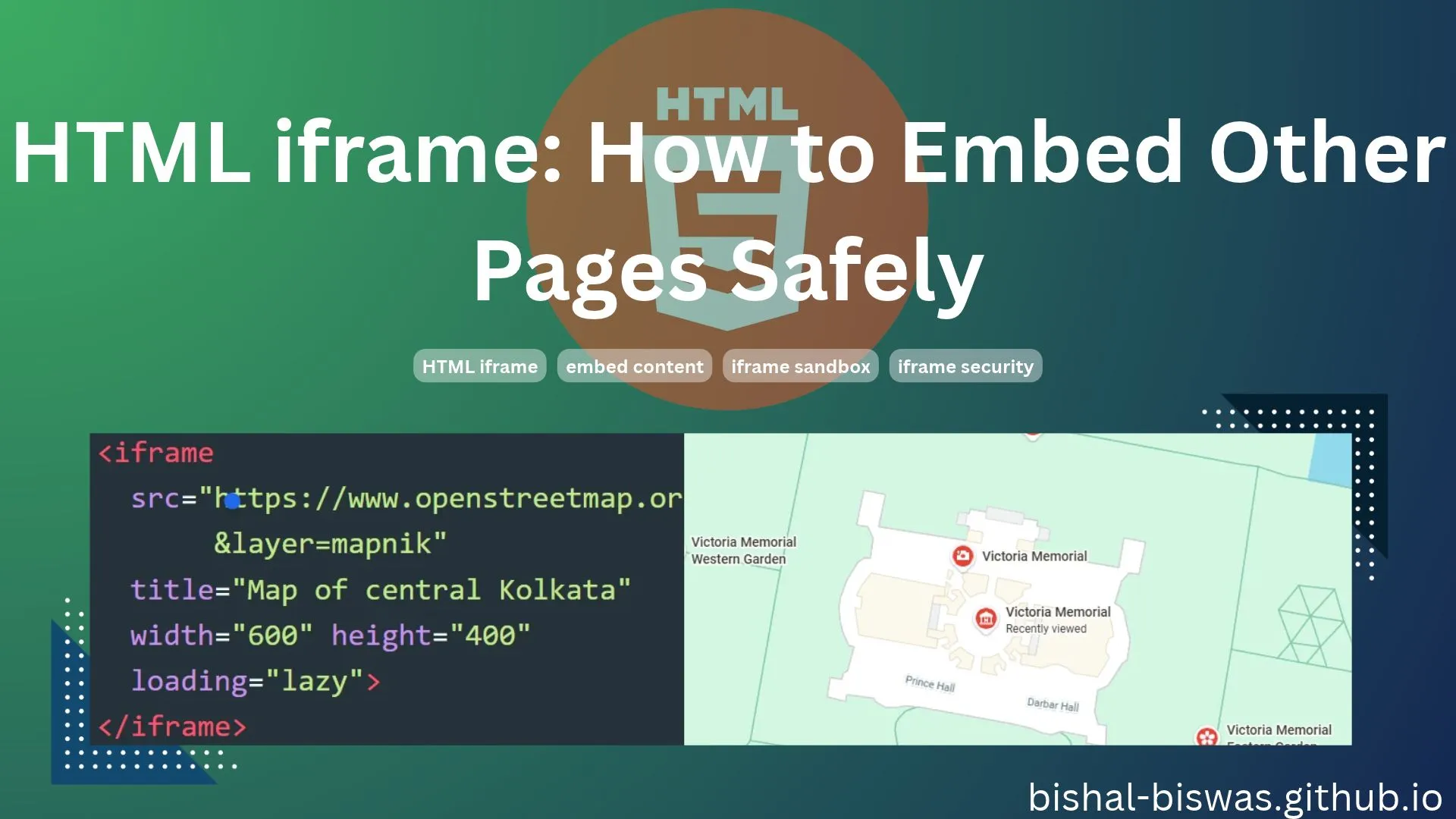
Google Maps and OpenStreetMap both offer iframe embed codes:
<iframe
  src="https://www.openstreetmap.org/export/embed.html?bbox=88.30,22.50,88.42,22.60&layer=mapnik"
  title="Map of central Kolkata"
  width="600" height="400"
  loading="lazy"></iframe>
Lazy Loading Iframes
Iframes can be heavy. A single video embed can download a lot of JavaScript. If the iframe is further down the page, add loading="lazy":
<iframe src="https://example.com/widget" title="Weather widget" loading="lazy"></iframe>The browser will wait until the user scrolls near it before loading. This is the same idea as lazy loading images, which I cover in HTML images: src, alt and responsive images.
Making Iframes Responsive
A fixed width="560" will overflow on small phones. The modern way to make an iframe responsive is with the CSS aspect-ratio property:
iframe.video {
  width: 100%;
  height: auto;
  aspect-ratio: 16 / 9;
  border: 0;
}<iframe class="video"
src="https://www.youtube-nocookie.com/embed/VIDEO_ID"
title="Video: CSS Grid basics"
allowfullscreen loading="lazy"></iframe>The iframe now fills its container’s width and keeps a 16:9 shape. Older tutorials use a “padding-bottom: 56.25%” wrapper trick. That still works, but aspect-ratio is simpler and supported in all modern browsers.
The sandbox Attribute
This is the most important security feature of iframes.
When you add sandbox with no value, the embedded page is heavily restricted:
<iframe src="https://untrusted.example" title="User content" sandbox></iframe>With an empty sandbox, the iframe cannot:
- Run JavaScript.
- Submit forms.
- Open popups.
- Navigate your main page.
- Access cookies or storage as its normal origin.
You can then allow specific features one by one:
<iframe
  src="https://widget.example"
  title="Comments widget"
  sandbox="allow-scripts allow-forms allow-popups"></iframe>
Common values include:
| Value | Allows |
|---|---|
allow-scripts |
Running JavaScript |
allow-forms |
Submitting forms |
allow-popups |
Opening new windows |
allow-same-origin |
Treating content as its real origin |
allow-top-navigation-by-user-activation |
Navigating the main page after a user click |
A Warning About allow-same-origin
Never combine allow-scripts and allow-same-origin for content from your own domain. Together, they let the embedded page’s scripts remove the sandbox attribute from the outside and escape it. For third-party content on a different domain, this combination is less risky because the same-origin policy still separates the two pages.
My rule: start with an empty sandbox and add only what the embed really needs.
The allow Attribute
The allow attribute controls which powerful browser features the iframe may use, such as the camera, microphone, fullscreen or geolocation:
<iframe
  src="https://meet.example/room"
  title="Video call"
  allow="camera; microphone; fullscreen"></iframe>
If a feature is not listed, the embedded page cannot use it, even if it asks. This is called Permissions Policy. I only grant what is necessary.
The referrerpolicy Attribute
When the iframe loads, the browser may tell the embedded site which page it was loaded from. You can limit this:
<iframe src="https://example.com" title="Example"
        referrerpolicy="no-referrer"></iframe>
Why Some Sites Will Not Load in an Iframe
Try embedding a site like a bank or a social network, and you will probably see an empty box or an error. That is on purpose.
Websites can send response headers that forbid embedding:
X-Frame-Options: DENYorSAMEORIGINContent-Security-Policy: frame-ancestors 'none'(or a list of allowed sites)
These headers protect against clickjacking, where an attacker hides a real site inside an invisible iframe and tricks users into clicking buttons.
You cannot override these headers from your page. If a site blocks embedding, use a normal link instead. I explain good link practices in HTML links explained.
Talking to an Iframe With JavaScript
If you control both pages, they can send messages to each other with postMessage:
const frame = document.querySelector("#widget");
frame.contentWindow.postMessage({ type: "theme", value: "dark" }, "https://widget.example");

window.addEventListener("message", (event) => {
  if (event.origin !== "https://widget.example") return;
  console.log("Message from iframe:", event.data);
});
Always check event.origin before trusting a message. Any page can send messages to your window.
Common Mistakes
1. Missing title
Screen reader users cannot tell what the iframe contains. Always add one.
2. Embedding Untrusted Content Without sandbox
If you show content you do not control, sandbox it and allow only what is needed.
3. Fixed Widths on Mobile
Use width: 100% with aspect-ratio instead of a fixed pixel width.
4. Loading Many Heavy Embeds at Once
Ten video embeds on one page can make it very slow. Use loading="lazy", or show a thumbnail that loads the real player only when clicked.
5. Trying to Embed Sites That Block It
If a site sends X-Frame-Options or frame-ancestors, it will not load, and there is no legitimate workaround. Link to it instead.
Conclusion
The iframe element is a powerful way to embed videos, maps, demos and widgets. Give every iframe a descriptive title, make it responsive with aspect-ratio, and lazy load it when it is not visible right away.
For safety, use sandbox for content you do not fully trust, grant features carefully with allow, and remember that some sites block embedding on purpose to protect their users. If you want to review how attributes like these work in general, see HTML elements and HTML attributes.